
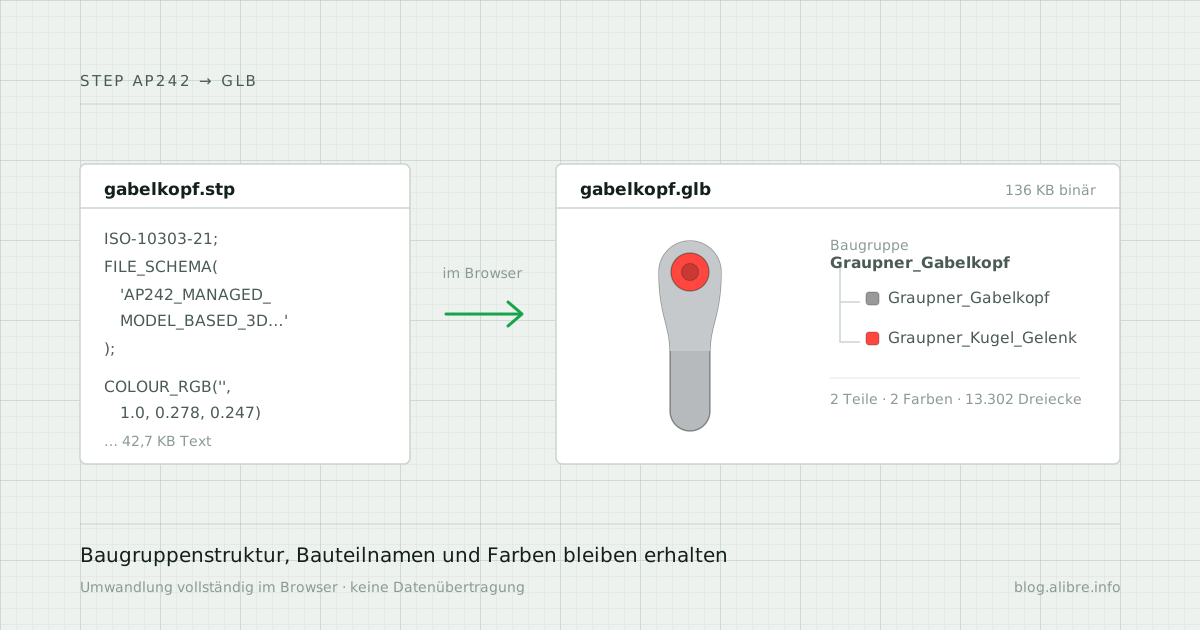
Showing a CAD assembly in the browser, rotatable, with every colour and part name intact: the converter turns STEP or OBJ into a single file that any browser displays without additional software.
It runs on your own machine, without installation and without an internet connection. Nothing is uploaded. If you work with design data that must not leave the building, you do not have to hand it over for this.
The result
A fuel distributor, 112 parts, 33 colours, exported from Alibre Design as STEP AP242 and converted here. Drag to rotate, scroll to zoom.
The converter
A single HTML file. Download it, double-click it, done. No installer, no add-in, no registry entries. Delete the file and nothing is left behind.
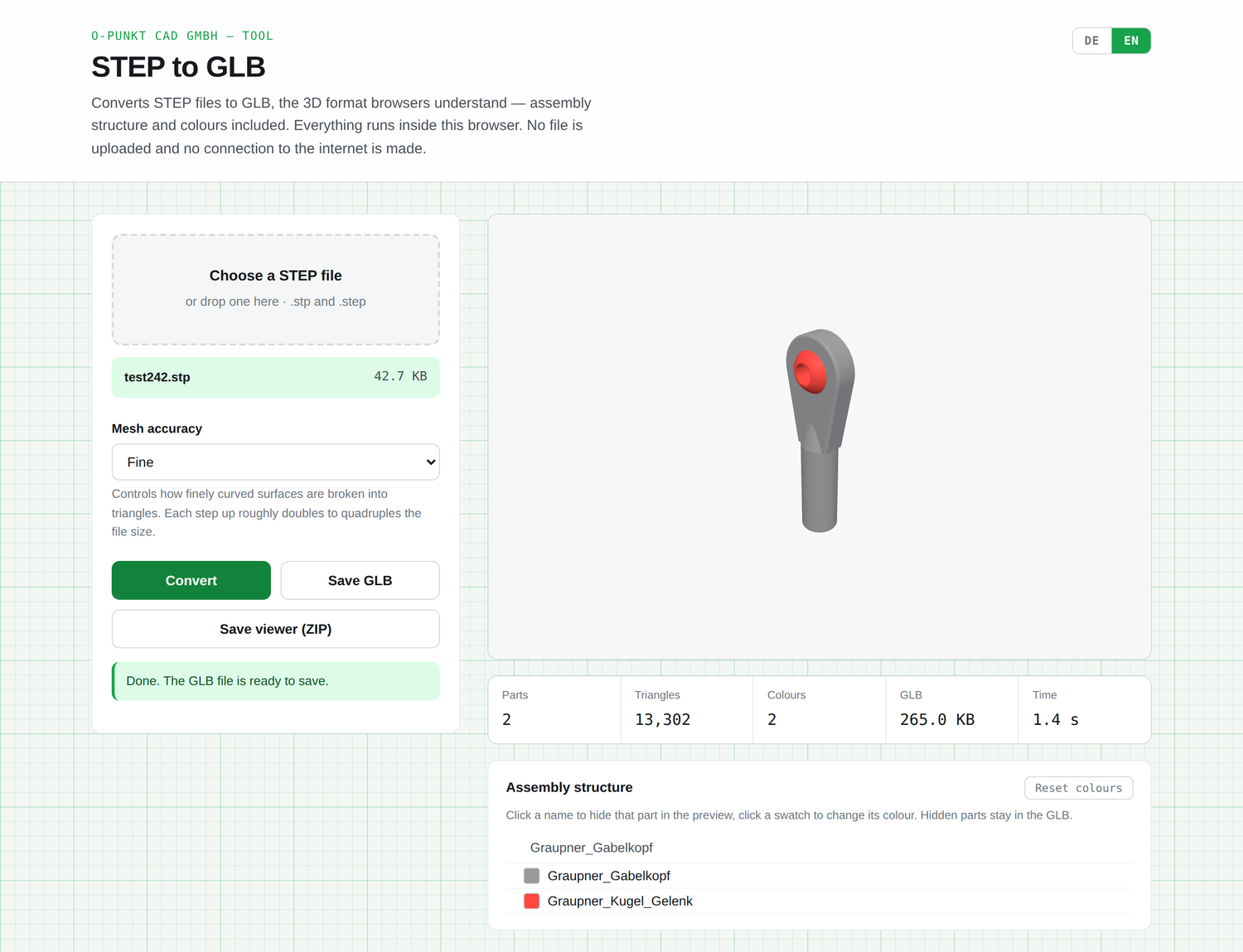
Three steps to operate it: choose the file, set the accuracy or the unit, convert. The preview shows the result with colours and assembly tree before anything is saved. In the parts list, clicking a name hides that part, clicking a swatch changes its colour, so a model exported without colours does not have to go back to CAD. A slider below the preview pulls the assembly apart.
You can then save either the GLB file on its own or a ready-made viewer to send to someone. The interface is available in German and English.
A tour in six scenes walks through the steps using the same assembly:
The export from Alibre
In the STEP export dialog, select schema AP242. It carries the assembly tree, the part names and the colour of every single part.
Before that, it pays to check the tessellation under View → Customize Performance → Display → Facet Resolution. This value leaves the STEP geometry untouched, which stays exact. It governs how finely that geometry is later broken into triangles, and therefore the size of the web model.
Tessellation and file size
Four settings in the converter control how finely curved faces are broken up. Measured on the assembly above, whose STEP file comes to 5.11 MB:
| Setting | Triangles | GLB |
|---|---|---|
| Coarse | 167,122 | 4.10 MB |
| Medium | 340,456 | 7.52 MB |
| Fine | 831,172 | 16.95 MB |
| Very fine | 3,178,136 | 65.32 MB |
A factor of 19 between the first row and the last. Coarse to medium is plenty for a web page. Publishing a complete assembly at the finest setting forces every visitor to download 65 megabytes.
Whatever the setting, the result can be compressed. The checkbox "Compress GLB (meshopt)" writes the geometry using EXT_meshopt_compression and brings the file down to roughly a quarter. The viewer produced here reads it. System previews on Windows or macOS usually do not. If you hand a GLB to someone without the viewer, leave it uncompressed.
When the STEP file is too large
The STEP route runs out in the browser at roughly 400 to 500 MB. The reason is structural: the STEP engine is a wasm32 module and can address at most 4 GB of memory. The raw file sits in the browser once and in that module's memory a second time before a single face has been broken up. Reading the file alone therefore takes twice its size. The converter warns above 250 MB and refuses above 500 MB.
For larger assemblies the route goes through OBJ. In Alibre: File, Export, OBJ. Alongside the OBJ file this produces an MTL file holding the colours. Pick both together, or drop both into the field, otherwise the model arrives in grey.
The difference is substantial, because the tessellation then happens in Alibre rather than in the browser. Measured on an assembly of 1,049 parts, 4,877,691 triangles and 56 materials, exported from Alibre V29:
| STEP | OBJ | |
|---|---|---|
| Input file | 1.8 GB | 328 MB |
| Result | fails | GLB |
| Peak memory | over 3.6 GB needed | 1.28 GB |
| Read time | 3.6 s | |
| GLB uncompressed | 123 MB | |
| GLB with meshopt | 37.3 MB | |
| Viewer package | 50.5 MB |
OBJ carries no unit of measurement, so the converter asks for one. The selection starts on centimetres, while Alibre writes the coordinates in the unit set in the document, so millimetres for a millimetre document. The dimensions shown tell you whether the choice is right: if the model comes out ten times too large, the unit is wrong. This affects the scale only, never the shape.
The OBJ limit sits higher. The converter warns above 600 MB and refuses above 1.2 GB.
What arrives, and why GLB
STEP under ISO 10303 defines several application protocols. AP242 is the one that suits this purpose, because it holds more than surfaces. A look inside the file makes this plain:
FILE_SCHEMA(('AP242_MANAGED_MODEL_BASED_3D_ENGINEERING_MIM_LF'));
COLOUR_RGB('', 1.0, 0.501960814, 0.0);
COLOUR_RGB('', 0.0, 0.501960814, 0.752941191);
These values reach the GLB unchanged, as do the assembly tree with its nesting, the part names and the unit of measurement.
For the web, glTF has become the standard, in its binary form GLB. A single file holds geometry, materials and scene tree together. Nothing can be lost on upload or point nowhere after a rename. Every mesh carries its own material, and every browser renders it without additional software.
Embedding the GLB on a web page
Two things are needed for a browser to show the model: the server has to serve the GLB file, and a library has to render it.
Check the server first. Some hosts block unfamiliar file extensions. Opening the uploaded GLB's address in a browser is enough to tell: if it downloads rather than showing an error page, you are fine. A 403 or 404 means the extension has to be enabled by the host.
The simplest way to embed is Google's model-viewer web component, Apache-2.0 licence:
<script type="module" src="/path/to/model-viewer.min.js"></script>

<model-viewer src="/path/to/model.glb"
              alt="Fuel distributor"
              camera-controls
              auto-rotate
              style="width:100%;height:480px">
</model-viewer>
Host model-viewer.min.js on your own server rather than loading it from someone else's CDN. Otherwise every page view sends the visitor's IP address to a third party, which in Europe requires a legal basis. The file comes from the npm package @google/model-viewer; only dist/model-viewer.min.js is needed, around 1 MB.
One note on that bundle: it carries three hard-coded decoder addresses that are fetched for compressed models. As long as the GLB comes from this converter, none of them is requested. To be certain, set this before the script tag:
<script>
  window.ModelViewerElement = {
    dracoDecoderLocation: '/path/to/draco/',
    ktx2TranscoderLocation: '/path/to/ktx2/',
  };
</script>
In WordPress this cannot go into an ordinary paragraph, because the editor strips script. Three routes work: a plugin for glTF files, a custom HTML block combined with a plugin that permits scripts, or placing the model page as a separate static file and pulling it in with an iframe. The third is the most robust, because it does not depend on the editor.
The example page shows the full embedding source, ready to copy.
Sending the model to someone
Besides the GLB file, the converter can produce a ready-made viewer. One click on "Save viewer" packs three things into a ZIP: an HTML file with the model embedded, the GLB itself, and a short readme.
The recipient unzips it, opens the folder and double-clicks the HTML file. The browser opens with the model, rotatable, with a parts list and dimensions. Nothing is installed, nothing is fetched from the internet, and no network connection is needed.
In the viewer, clicking a part in the model hides it. That is the quickest way to reach a part sitting behind others, without hunting through the list. The button "Show all again" restores the original state.
A slider pulls the assembly apart. Sub-assemblies come apart in turn, not just the top level. The setting affects the view only; the GLB file is untouched.
One point that matters when sending to third parties: a GLB holds only the tessellated surface, that is triangles. The exact geometry with faces, edges and design intent stays behind in the STEP file. Whoever receives a GLB can look at the part and turn it, but cannot readily carry on with it as an editable CAD model. For quotes, design reviews and previews that makes it the more suitable format to hand out.
For the assembly above the ZIP comes to 4.71 MB at the coarse setting. That passes through most mail servers.
To see it without converting anything yourself: kraftstoffverteiler-viewer.zip (4.71 MB). That is exactly what arrives at the other end.
Licences
Open CASCADE Technology reads the STEP file, integrated through occt-import-js, both under LGPL-2.1. three.js handles the preview and the output, under the MIT licence. Compression is done by meshoptimizer, also MIT. OBJ and MTL are read by the converter itself.
The full licence texts are inside the tool itself, with the source code linked from there. No tracking, no fonts from third-party servers, no external addresses.
Changes
1.2 – 25 August 2026 OBJ with MTL as an additional input format. Compression via EXT_meshopt_compression. Parts can be hidden by clicking them in the model. Exploded view with a slider, in the preview and in the generated viewer, affecting the view only. Slightly glossier surfaces, and the preview now uses the same environment lighting as the viewer.
1.1 – 14 August 2026 Viewer for sending, packed as a ZIP. Parts can be hidden in the preview. Colours can be changed afterwards and reset to the values from the STEP file.
1.0 – 13 August 2026 First release: STEP AP242 to GLB, four accuracy settings, preview with assembly tree.