
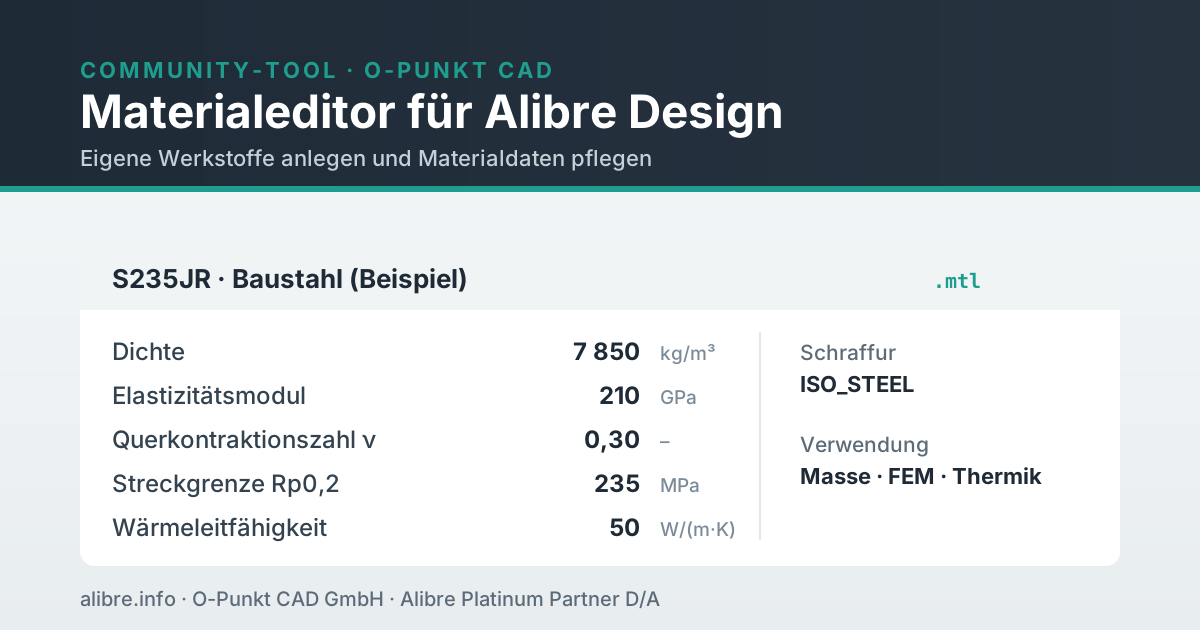
The tool loads only after you click. Open in a separate window ↗
Tool & documentation (German) →
Alibre Design comes with an extensive material library. It is sufficient for mass and centre of gravity, but not for many calculations: in the supplied library, only the density is stored for most materials, and all other properties are empty. If you work with your own alloys or need values for strength and thermal considerations, you have to maintain the data yourself.
How Alibre Design stores material data
Alibre stores materials in a material file of its own in .mtl format. At its core, this file is a readable XML structure, divided into folders; each folder contains individual materials. The supplied library comprises 139 materials in 15 folders:
| Folder | Materials | Folder | Materials |
|---|---|---|---|
| 3D printing | 4 | Non-ferrous metals | 10 |
| Aluminium | 10 | Nitriding steel | 5 |
| Induction hardening steel | 20 | Stainless steel | 7 |
| Elastomers | 7 | Non-alloy steel | 8 |
| Case-hardening steel | 13 | Thermoplastics | 13 |
| Wood | 10 | Composites | 9 |
| Cold work steel | 9 | Quenched and tempered steel | 10 |
| Polymer | 4 |
In addition to name, internal ID and hatch pattern, each material stores a range of physical, electrical and thermal properties. The following overview shows the fields with their unit and how they are filled in the standard library:
| Property | Group | Unit | Standard library |
|---|---|---|---|
| Density | physical | kg/m³ | filled |
| Hardness (Brinell) | physical | HB | empty |
| Tensile strength Rm | physical | MPa | empty |
| Yield strength Rp0.2 | physical | MPa | empty |
| Modulus of elasticity | physical | GPa | empty |
| Poisson's ratio ν | physical | – | empty |
| Shear modulus G | physical | GPa | empty |
| Shear strength | physical | MPa | empty |
| Electrical resistivity | electrical | Ω·m | empty |
| Thermal expansion (CTE) | thermal | µm/(m·K) | empty |
| Specific heat capacity | thermal | J/(kg·K) | empty |
| Thermal conductivity | thermal | W/(m·K) | empty |
The consequence is important and often overlooked: since practically all fields except density are empty, the standard library cannot be used directly for FEA simulations in Alibre. Filling in these values is the actual added value of a material editor.
The hatch pattern (e.g. ISO_STEEL, ISO_ALUM, ANSI32) controls how the material is shown in technical section drawings. It has no influence on calculations but should match the type of material.
Creating your own material: the MTL editor
Material data can be entered directly in Alibre. For more extensive maintenance, for company-specific libraries or for distribution to several workstations, a standalone tool is more practical. The MTL editor by O-Punkt CAD is a single HTML file that runs in any modern browser without installation and without an internet connection. All data remains local on your own computer.
The typical workflow:
| Step | Procedure |
|---|---|
| 1 | Download the MTL editor and open it in your browser with a double-click |
| 2 | Load an existing .mtl file (drag and drop or file selection) or create a new library |
| 3 | Choose a folder in the sidebar, select a material or add a new one |
| 4 | Enter properties: density, modulus of elasticity, Poisson's ratio, yield strength, tensile strength, thermal conductivity, specific heat capacity, thermal expansion |
| 5 | Export the file; the finished .mtl is downloaded |
| 6 | Copy the file into the Alibre materials folder: C:\ProgramData\Alibre Design\System Files\Materials |
| 7 | Start Alibre; the material is available in the material selection |
The editor checks entries immediately, supports search and sorting across the entire library and works with all Alibre editions (Atom3D, Pro, Expert). You can reach the editor itself via the download button above.
Alibre loads several .mtl files in this folder in parallel as separate libraries. A library you maintain yourself can therefore be placed there in addition, without overwriting the standard library. The ProgramData folder is hidden by default in Windows; it can be reached via the address bar of File Explorer or by showing hidden folders. Before changing the standard library, it is advisable to make a backup copy of the .mtl file concerned.
Which property is needed for what
Not every property is needed for every task. Which fields must be filled depends on what Alibre is to calculate:
| Task | Required properties |
|---|---|
| Mass, weight, centre of gravity | density |
| Statics / FEA (linear stress analysis) | modulus of elasticity, Poisson's ratio; for evaluation, yield strength and tensile strength |
| Thermal considerations | thermal conductivity, specific heat capacity, thermal expansion |
| Hatching in drawings | hatch pattern (not a calculation quantity) |
For isotropic materials, there is a fixed relationship between modulus of elasticity, Poisson's ratio and shear modulus:
G = E / (2 (1 + ν))
For steel with E = 210 GPa and ν = 0.30, this gives G ≈ 80.8 GPa. If you do not have the shear modulus from a reliable source, you can calculate it this way, but only for isotropic materials. For wood, fibre composites or other anisotropic materials, this formula does not apply; here, direction-dependent characteristic values according to the relevant standard are required (e.g. EN 338 for structural timber, EN 14080 for glued laminated timber).
A common mistake concerns the units. In the Alibre material file, the modulus of elasticity is given in GPa, strengths on the other hand in MPa (1 GPa = 1000 MPa). A mix-up shifts the result by a factor of 1000. A quick plausibility check before taking the values over is worthwhile: structural steel has a modulus of elasticity of around 210 GPa, not 210 MPa.
Data quality: what to look out for
Material data is only as good as its source. Three points are relevant in practice:
First, the origin. Values should come from material standards, manufacturer data sheets or recognised reference tables and be documented with their source. Experience shows that data sets taken over second-hand or generated automatically contain errors that are difficult to trace later.
Second, calculated versus measured values. A shear modulus calculated via G = E / (2 (1 + ν)) is permissible for isotropic metals, but not for anisotropic materials. If you take over data sets in which such values have been calculated across the board, you should know this and check them.
Third, the material designation. Standard short names and material numbers must match. Example: according to EN 10025-2, S235JR has the material number 1.0038. Older sources still assign 1.0038 to the old designation RSt37-2. Both are correct in their respective context but can lead to contradictions if taken over uncritically. Where this grade occurs in practice and which alternatives exist is covered in the article Steel angle table: L-sections with dimensions, weights and standards.
For safety-critical designs, the following applies regardless of the tool: input values and calculation results must be cross-checked. The MTL editor is provided without warranty.
Tool and source
The MTL editor is available free of charge to the Alibre user community. Maintenance and further development are carried out independently by O-Punkt CAD GmbH; feedback is welcome.
- Tool page and detailed help: alibre.info/ressourcen/community-tools/mtl-editor (in German)
- Direct download: mtl-editor.html
- All tools on the blog: Tools & scripts
Source: O-Punkt CAD GmbH, MTL editor for Alibre Design (community tool), available at alibre.info/ressourcen/community-tools/mtl-editor/.