
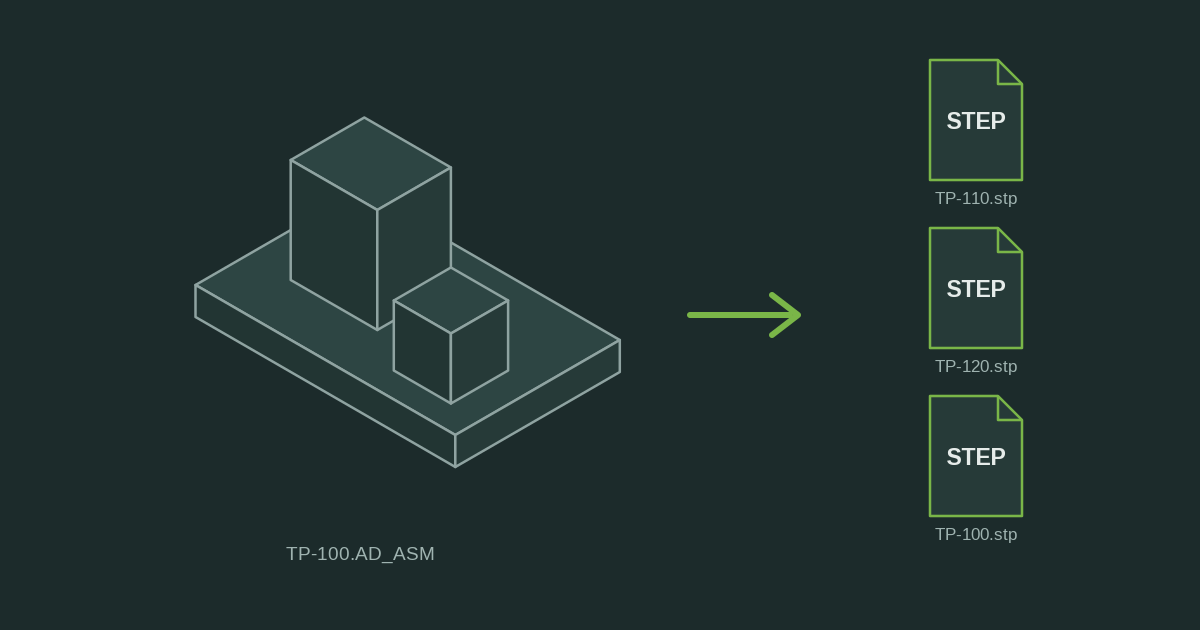
A front axle with 20 different parts is going to a manufacturer. The manufacturer wants every part as a separate STEP file, the supplier of the turned parts needs AP203, and the company archive works with AP242. In Alibre Design this has meant opening every part, exporting it, naming the file, and repeating all of it for each version. With 20 parts and three versions, that is 60 manual exports.
The add-on Parts Export does this in one run. For the assembly mentioned above, the 60 files were written in about five seconds.
What the add-on does
Parts Export walks through the open assembly and writes every part as a STEP file to an output folder.
- Each part file is exported only once, even if it is used many times. Ten identical screws give one file.
- The file name comes from the part file:
Lagerbolzen_kurz.AD_PRTbecomesLagerbolzen_kurz.stp. If two different part files have the same name, the second one gets the suffix_2. - Sub-assemblies can be included.
- Suppressed parts can be skipped, and so can hidden parts.
- Existing files in the output folder are either overwritten or kept.
- The user interface is German when Alibre Design runs in German, and English for all other languages.
- Output folder and settings are remembered for the next run.
STEP AP203, AP214 and AP242
STEP is defined in the ISO 10303 series. Several application protocols (AP) exist for exchanging 3D models. Parts Export offers the three that Alibre Design can write. Each selected version gets its own subfolder in the output folder:
| Subfolder | Standard | Tested with Alibre Design 29.1 |
|---|---|---|
AP203 | ISO 10303-203, last edition 2011 | geometry without colours |
AP214 | ISO 10303-214, last edition 2010 | geometry with colours |
AP242 | ISO 10303-242, first edition 2014 | geometry with colours |
AP242 merged and replaced AP203 and AP214. Which version is needed is usually decided by the recipient. If several versions are selected, all of them are written in one run.
How to use it
After installation, the command is available in an open assembly on the Add-on tab under Parts Export → Export parts as STEP.
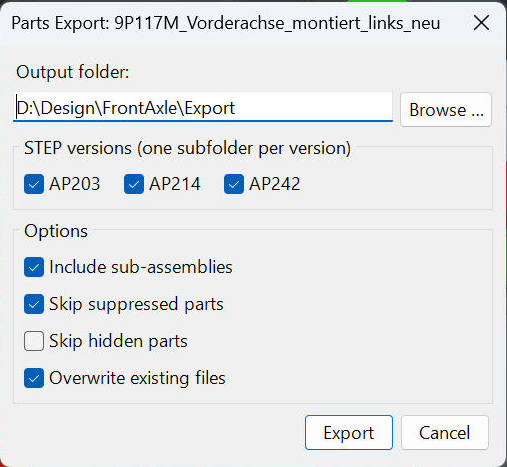
On the first run the dialog suggests the subfolder Export next to the assembly file. After Export, a progress window shows the current part, and the export can be cancelled there. At the end the add-on reports how many files were written from how many parts. Parts that could not be exported are listed with the reason in the message and in the log.
Installation
- Close Alibre Design.
- Unzip the download.
- Double-click
Installieren.cmdand confirm the administrator prompt with Yes. - Start Alibre Design and open an assembly.
The add-on is copied to C:\ProgramData\Alibre AddOns\TeileExport and registered with Alibre Design. To remove it, run Deinstallieren.cmd from the same package. Settings are stored in %APPDATA%\O-Punkt CAD\TeileExport, the log in %LOCALAPPDATA%\O-Punkt CAD\TeileExport.
Requirements and limits
- Windows 64-bit, Alibre Design 29.1
- Tested with Alibre Design Expert 29.1.1.29133
- Alibre Script is not required. The add-on uses the Alibre Design programming interface directly.
- Parts are exported. The assembly itself is not written as a STEP assembly; the regular Alibre Design export remains the tool for that.
- The installation package is not digitally signed, so Windows SmartScreen may ask for confirmation on first start.
Download and licence
Version 1.0.2 of 22.11.2026. The add-on is free for private and commercial use. Redistribution, modification or rebranding require the prior written permission of the rights holder. Use is without warranty. Feedback and suggestions are welcome.