
The tool loads only after you click. Open in a separate window ↗
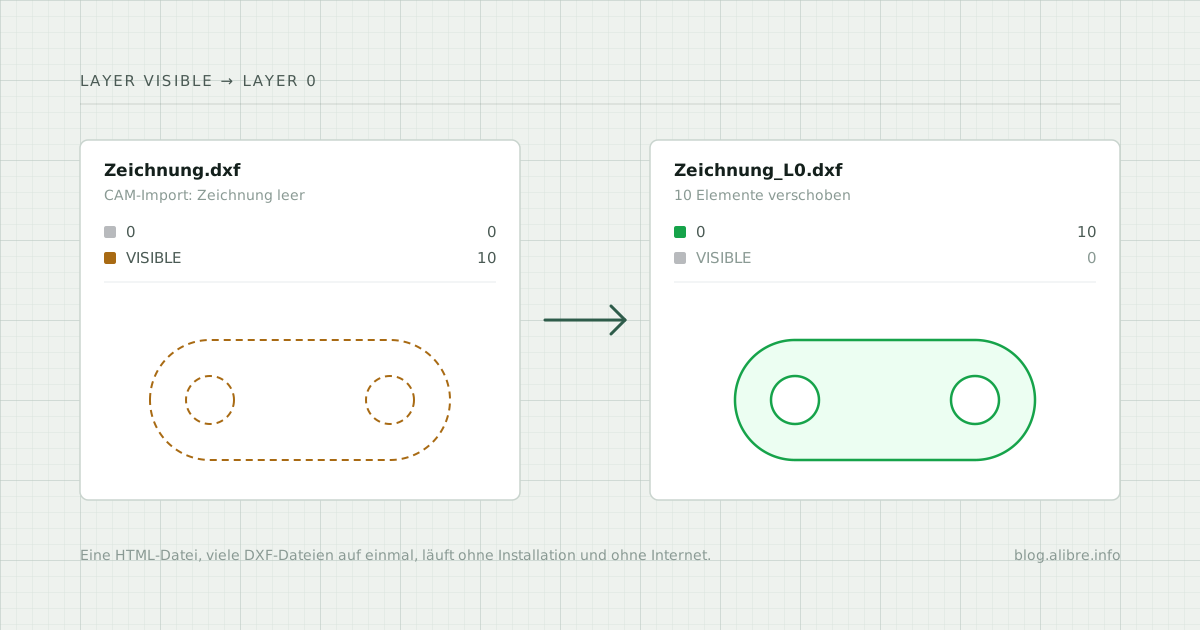
A drawing is exported from Alibre Design or another CAD program as a DXF file and opened in CAM, laser or nesting software. Instead of the contour, you get an empty drawing or a message that no geometry was found. The file is valid and the contour is closed. Still, the program imports nothing.
The cause is often the layer. Once the geometry is moved to layer “0” in a 2D program, the file opens. For one file that is quick. For every new drawing it becomes a nuisance. DXF Layer Fix does this step for any number of files at once.
When the DXF file arrives empty
Many CAM, laser and nesting programs do not import all geometry from a DXF file, only the geometry on certain layers. Which layers these are is set in the import configuration. If the geometry is on a layer that is not listed there, the drawing appears empty, even though it is all in the file.
Why the layer matters
Which layer the geometry ends up on depends on the CAD program and its export settings. When exporting DXF from Alibre Design, for example, all of the geometry (arcs, lines, circles) can end up on the layer “VISIBLE”, while layer “0”, which practically every program recognises, stays empty. If the target program only imports layer “0”, nothing arrives.
Exporting to an older DXF version does not change this, because the layer name stays the same. There are two ways to solve it:
- Assign the layer of the geometry, such as “VISIBLE”, in the import configuration of the target program. Whether and where this can be set is described in that program's documentation.
- Move the geometry in the DXF file to a layer the program imports. This is what DXF Layer Fix does.
What DXF Layer Fix does
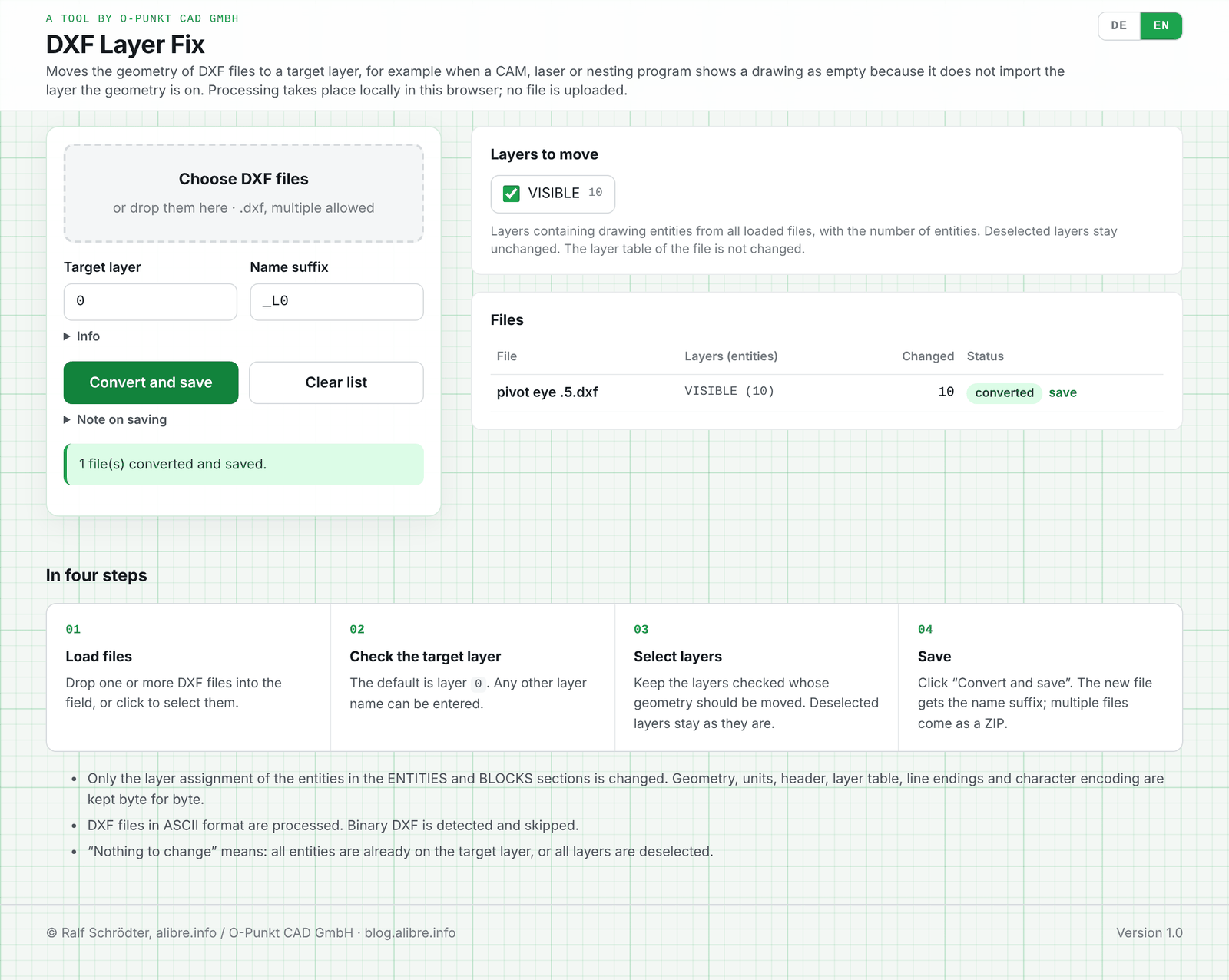
DXF Layer Fix reads one or more DXF files and lists every layer that contains drawing entities, with the number of entities per layer. The geometry on the selected layers is moved to a target layer. The default is layer “0”; any other name can be entered.
- batch processing: any number of files in one run
- source layers can be deselected individually, for example to keep a layer for annotations
- a single file is saved directly, multiple files as a ZIP
- the new file gets a name suffix, “_L0” by default
- user interface in English and German, with a short guide
The tool is a single HTML file and runs entirely in your browser, also without an internet connection. No data is transmitted.
How to use it in four steps
- Open. Double-click the HTML file to open it in your browser.
- Load files. Drop one or more DXF files into the field, or click to select them.
- Check the layers. Check the target layer and the name suffix. Under “Layers to move”, keep the layers checked whose geometry should be moved.
- Save. Click “Convert and save”.
What stays unchanged
Only the layer assignment of the entities in the ENTITIES and BLOCKS sections is changed. Everything else is kept byte for byte:
- geometry and units
- the header with DXF version and settings
- the layer table: the old layer remains, but is empty afterwards
- line endings and character encoding
- the original file, which is not overwritten
The tool processes DXF files in ASCII format. Binary DXF files are detected and skipped with a note.
Changes
1.0, 16 October 2026 First release.